
How to Redeem PlayStation Gift Card?

PLAYSTATION GUIDE
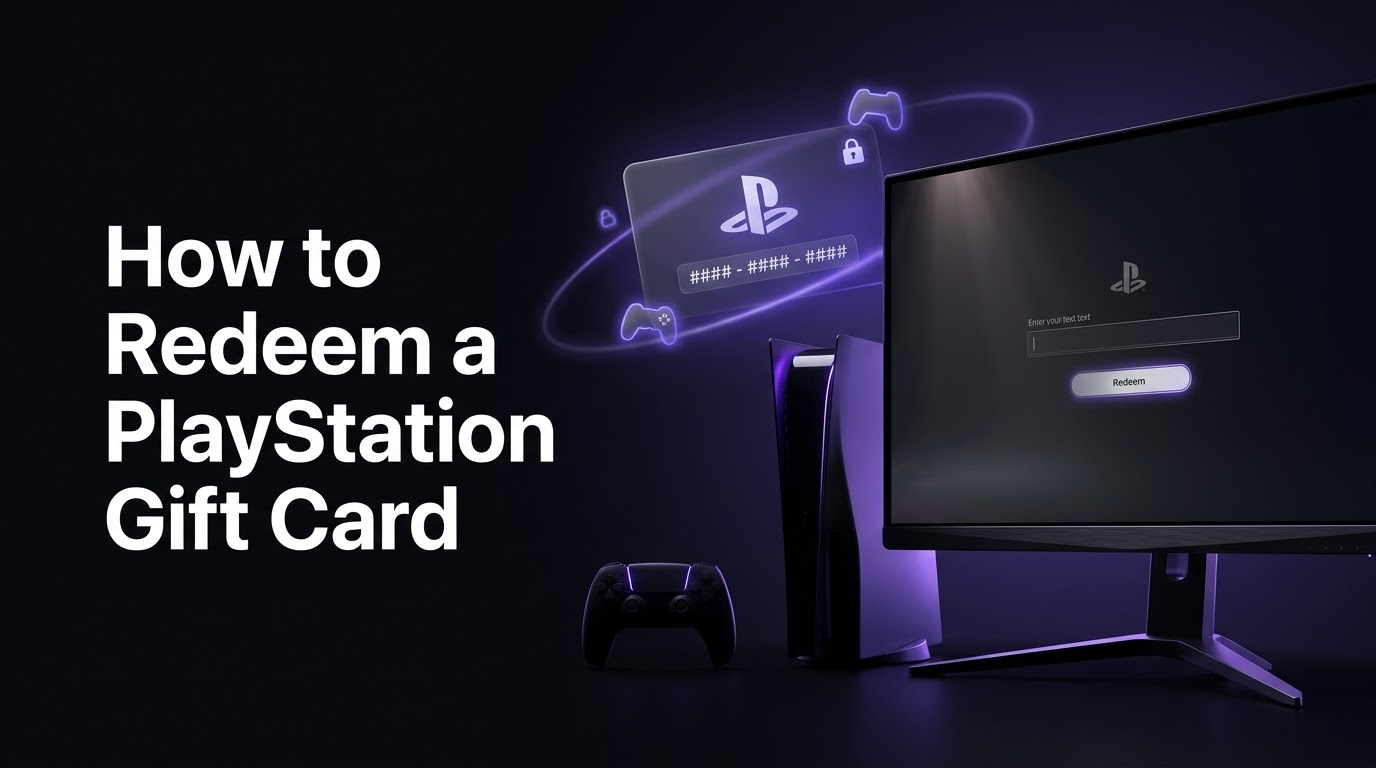
How to Redeem PlayStation Gift Card: Complete Guide
Want to learn how to redeem PlayStation gift card codes? Whether you’re using a PS5, PS4, the PlayStation App, or a web browser, redeeming a PlayStation Store gift card only takes a few simple steps.
In this complete guide, you’ll learn how to redeem PlayStation gift card codes on every supported method. We’ll also explain where to enter your PlayStation code, how PlayStation Store vouchers work, why region matters, and what to do if your gift card isn’t working.
Important:
Always check the country or region of your PlayStation gift card before
redeeming it. The voucher must be compatible with the region of your
PlayStation account.
How to Redeem PlayStation Gift Card: Quick Answer
To redeem a PlayStation gift card, sign in to the correct PlayStation account, open the PlayStation Store, select Redeem Code, enter your 12-digit voucher code, and confirm the redemption.
PS5
Open PlayStation Store, open the menu, select Redeem Code, and enter your 12-digit voucher code.
PS4
Open PlayStation Store, select Redeem Codes, enter your voucher, and confirm the redemption.
PlayStation App
Open the PS Store section in the app, select Redeem Code, and enter your PlayStation voucher.
Web Browser
Sign in to PlayStation Store, open your profile menu, choose Redeem Code, and enter the voucher.
Remember:
Check your account + region before redeeming.
What You Need Before You Redeem a PlayStation Gift Card
Before you redeem your PlayStation Store gift card, make sure you have everything you need. Checking these details first can prevent common redemption problems.
- An active PlayStation Network account
- A valid PlayStation Store gift card code
- The correct PlayStation account
- A gift card that matches your account region
- A stable internet connection
- The complete 12-digit voucher code
Tip:
If you purchased a digital PlayStation gift card, keep your order
confirmation until you successfully redeem the code.
How to Redeem PlayStation Gift Card on PS5
If you own a PS5, you can redeem your PlayStation Store voucher directly from your console. You don’t need to use a computer or phone.
- Turn on your PS5 and sign in to the PlayStation account where you want to add the funds.
- Open the PlayStation Store.
- Open the Store menu.
- Select Redeem Code.
- Enter your 12-digit PlayStation gift card code.
- Select Redeem.
- Confirm the redemption when prompted.
After successful redemption, the gift card value is added to the wallet associated with the PlayStation account you used.
Important:
Make sure you are using the correct PlayStation account before confirming
the redemption.
How to Redeem PlayStation Gift Card on PS4
PS4 users can also redeem PlayStation Store codes directly from the console.
- Turn on your PS4 and sign in to your PlayStation account.
- Open the PlayStation Store.
- Scroll down the menu on the left side.
- Select Redeem Codes.
- Enter your 12-digit PlayStation gift card code.
- Select Continue.
- Confirm the redemption.
Once the code has been accepted, the available value will be applied to the PlayStation account associated with the redemption.
How to Redeem a PlayStation Gift Card Online
You don’t need a PlayStation console to redeem a compatible PlayStation Store voucher. You can also redeem your code online through the PlayStation Store.
- Open the official PlayStation Store website.
- Sign in to your PlayStation account.
- Open your profile menu.
- Select Redeem Code.
- Enter your 12-digit voucher code.
- Select Continue.
- Confirm the redemption.
After the redemption is completed, the funds or eligible content will be associated with the account you used.
How to Redeem a PlayStation Gift Card in the PlayStation App
If you’re using a smartphone, you can redeem a PlayStation Store voucher through the PlayStation App.
- Open the PlayStation App.
- Sign in to your PlayStation account.
- Select the PS Store icon.
- Open the Store menu.
- Select Redeem Code.
- Enter your 12-digit PlayStation code.
- Select Continue.
- Confirm the redemption.
Your PlayStation wallet should reflect the redeemed value after the voucher has been successfully processed.
How Many Digits Is a PlayStation Gift Card Code?
Standard PlayStation Store voucher codes contain 12 digits. When entering your code, make sure all digits are entered correctly.
PlayStation Store Voucher: 12-Digit Code
PlayStation also distinguishes standard voucher codes from discount codes. A discount code is different from a wallet voucher and may have different redemption requirements.
Tip:
If your code is rejected, carefully compare every character with the
original voucher before trying again.
Does a PlayStation Gift Card Need to Match Your Region?
Yes. Region compatibility is one of the most important things to check before buying or redeeming a PlayStation gift card.
PlayStation Store voucher codes are intended for specific regions, and the voucher needs to be compatible with the region associated with your PlayStation account.
Before buying:
Check Country + Region + Currency
For example, if your PlayStation account is registered to a particular country’s PlayStation Store, you should purchase a gift card intended for that same region rather than selecting a random international code.
Your account region is selected when the account is created, so changing the console itself does not necessarily change your PlayStation account region.
What Can You Buy With a PlayStation Gift Card?
A PlayStation Store gift card adds funds to your PlayStation wallet. Depending on your account and region, those funds can be used toward eligible products and services available through PlayStation Store.
Digital Games
Purchase eligible digital PlayStation games available through the PlayStation Store.
Game Add-Ons
Buy eligible downloadable content and other game add-ons.
Digital Content
Use your available wallet funds for eligible digital content offered through PlayStation Store.
Subscriptions
Depending on your region and account, wallet funds may be available for eligible PlayStation services.
What Happens After You Redeem a PlayStation Gift Card?
Once the PlayStation Store accepts your voucher, its value is applied to the PlayStation wallet associated with the account used for redemption.
You can then use the available wallet balance toward eligible purchases on the PlayStation Store.
- Redeem the PlayStation gift card.
- The voucher is processed by PlayStation Store.
- The wallet balance is updated.
- Browse the PlayStation Store.
- Select an eligible product.
- Use your available wallet balance during checkout.
Remember:
Voucher codes should be treated like cash. Keep unused codes private and
do not share them publicly.
Can You Redeem a PlayStation Gift Card on Another Account?
You should always check which PlayStation account is currently signed in before redeeming a gift card.
Once a voucher has been redeemed, its value is associated with the account that redeemed it. PlayStation does not provide a general method for transferring redeemed wallet funds between different accounts.
Important:
Check your account name before selecting
Redeem Code, especially if multiple people use the same
PlayStation console.
PlayStation Gift Card Not Working? Here’s What to Do
If your PlayStation gift card isn’t working, there are several things you can check before contacting support.
1. Check the Voucher Code
Carefully enter all 12 digits. A single incorrect character can prevent the code from being accepted.
2. Check Your PlayStation Region
Make sure the gift card belongs to the same region supported by your PlayStation account.
3. Make Sure the Code Hasn’t Been Redeemed
A PlayStation Store voucher cannot normally be redeemed multiple times. If you see a message indicating that the code has already been used, check your account and transaction history.
4. Check the Voucher Terms
Some vouchers can have specific terms or expiry conditions. Check the information supplied with the code.
5. Check PlayStation Network Status
Temporary PlayStation service problems can sometimes interfere with account and Store functionality. If the service is experiencing an outage, wait until the issue has been resolved and try again.
6. Restart Your Console or App
If everything appears correct, close the PlayStation Store or app, restart your device, sign in again, and attempt the redemption once more.
Tip:
If your code still doesn’t work after checking the region, account,
voucher digits, and service status, contact PlayStation Support and
provide your purchase information.
Common PlayStation Gift Card Problems
Problem
What to Check
Code not accepted
Check that all 12 digits have been entered correctly.
Wrong region
Confirm that the gift card matches your PlayStation account region.
Already redeemed
Check your account and transaction history.
Wallet balance not updated
Refresh your account and check the transaction history.
Store unavailable
Check PlayStation Network service status and try again later.
How to Choose the Right PlayStation Gift Card
If you’re planning to buy a PlayStation gift card online, check the following details before placing your order.
PlayStation Gift Card Safety Tips
Digital gift card codes should be treated like cash. Anyone who obtains an unused voucher code may be able to redeem it.
- Purchase from a trusted retailer.
- Never publish an unused voucher code online.
- Never send your code to strangers.
- Check the region before purchasing.
- Keep your order confirmation.
- Redeem the code on the correct PlayStation account.
Security tip:
Never share a complete unused PlayStation gift card code with someone
you don’t trust.
Frequently Asked Questions About PlayStation Gift Cards
How to redeem PlayStation gift card codes?
Sign in to your PlayStation account, open PlayStation Store, select Redeem Code, enter your 12-digit voucher code, and confirm the redemption. You can use supported redemption methods on PS5, PS4, the PlayStation App, or online.
How many digits does a PlayStation gift card have?
Standard PlayStation Store voucher codes contain 12 digits. Enter the complete code exactly as provided.
Can I redeem a PlayStation gift card from another country?
PlayStation Store voucher codes are region-specific. The voucher needs to be compatible with the country or region associated with your PlayStation account.
Can I redeem a PlayStation gift card on PS5?
Yes. You can redeem a compatible PlayStation Store voucher directly through the PlayStation Store on PS5.
Can I redeem a PlayStation gift card on PS4?
Yes. Open PlayStation Store on your PS4, select Redeem Codes, enter your voucher code, and confirm.
Can I redeem a PlayStation gift card without a console?
Yes. You can use supported PlayStation Store redemption options through the PlayStation website or PlayStation App.
What can I buy with a PlayStation gift card?
A PlayStation Store gift card adds funds to your PlayStation wallet. Depending on your region and account, those funds can be used for eligible PlayStation Store purchases.
Why is my PlayStation gift card not working?
Check the 12-digit code, account region, redemption status, and voucher terms. You should also check PlayStation Network service status. If the problem continues, contact PlayStation Support.
Can I transfer PlayStation gift card funds to another account?
Redeemed wallet funds are associated with the account that redeemed the voucher. Always verify the correct account before redeeming a code.
Final Thoughts
Learning how to redeem PlayStation gift card codes is simple once you know where to enter the voucher. On PS5, PS4, the PlayStation App, or the web, the basic process is the same: sign in to the correct account, open PlayStation Store, select Redeem Code, enter the voucher, and confirm.
The most important rule:
Always check the PlayStation account, country, region, and voucher type before redeeming your gift card.
If your code doesn’t work, don’t immediately assume the voucher is invalid. Check the code carefully, verify the region, make sure it has not already been redeemed, and check PlayStation Network status before contacting support.
GUZMZONE
Looking for PlayStation Gift Cards?
Looking for a PlayStation gift card for your account? Explore digital gaming products at GuzmoZone and make sure you select the correct region before purchasing.
Shop PlayStation Gift CardsOfficial PlayStation Resources
For the latest redemption instructions, account information, and troubleshooting help, always refer to official PlayStation resources.